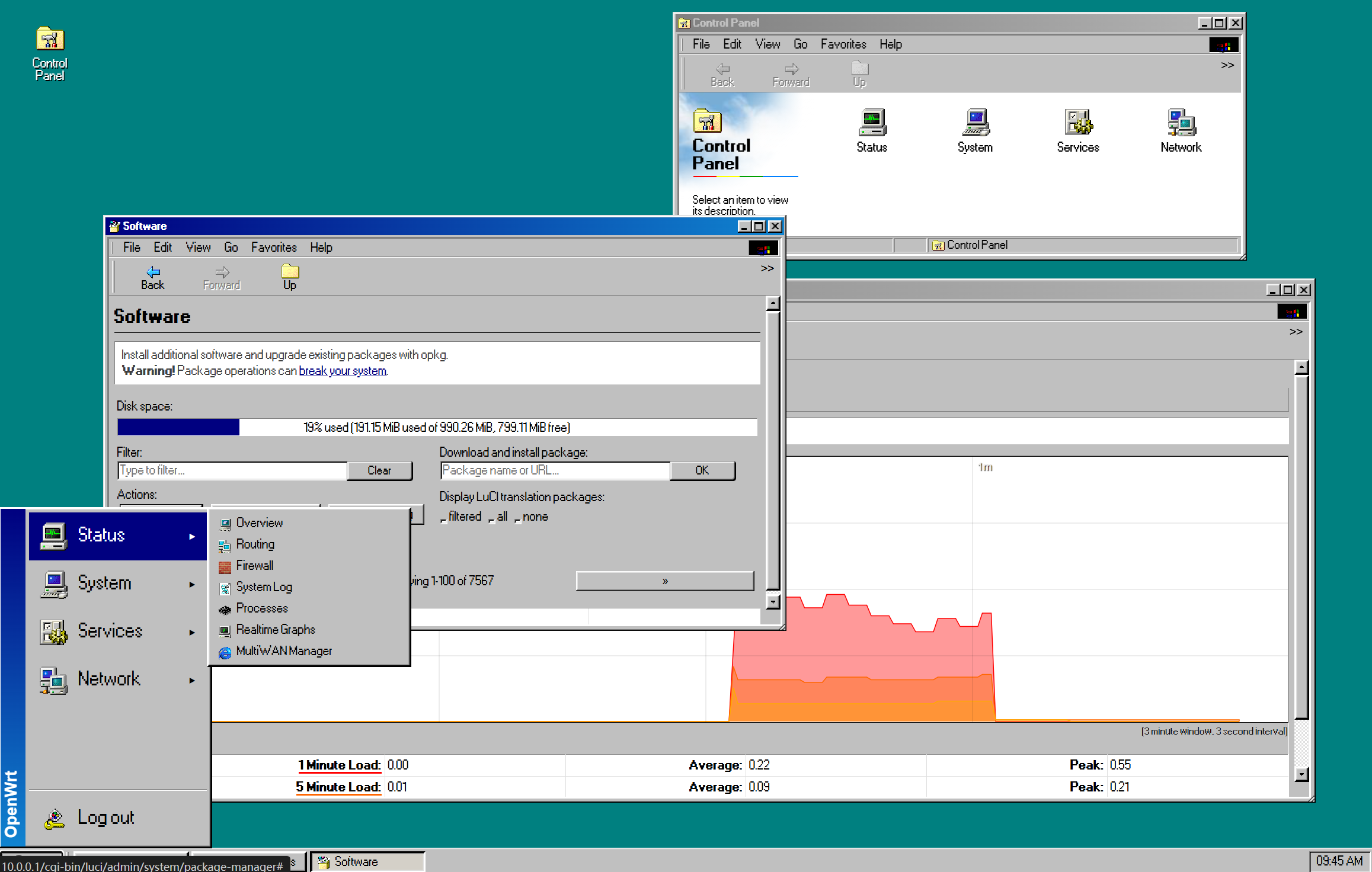
可以說十分之還原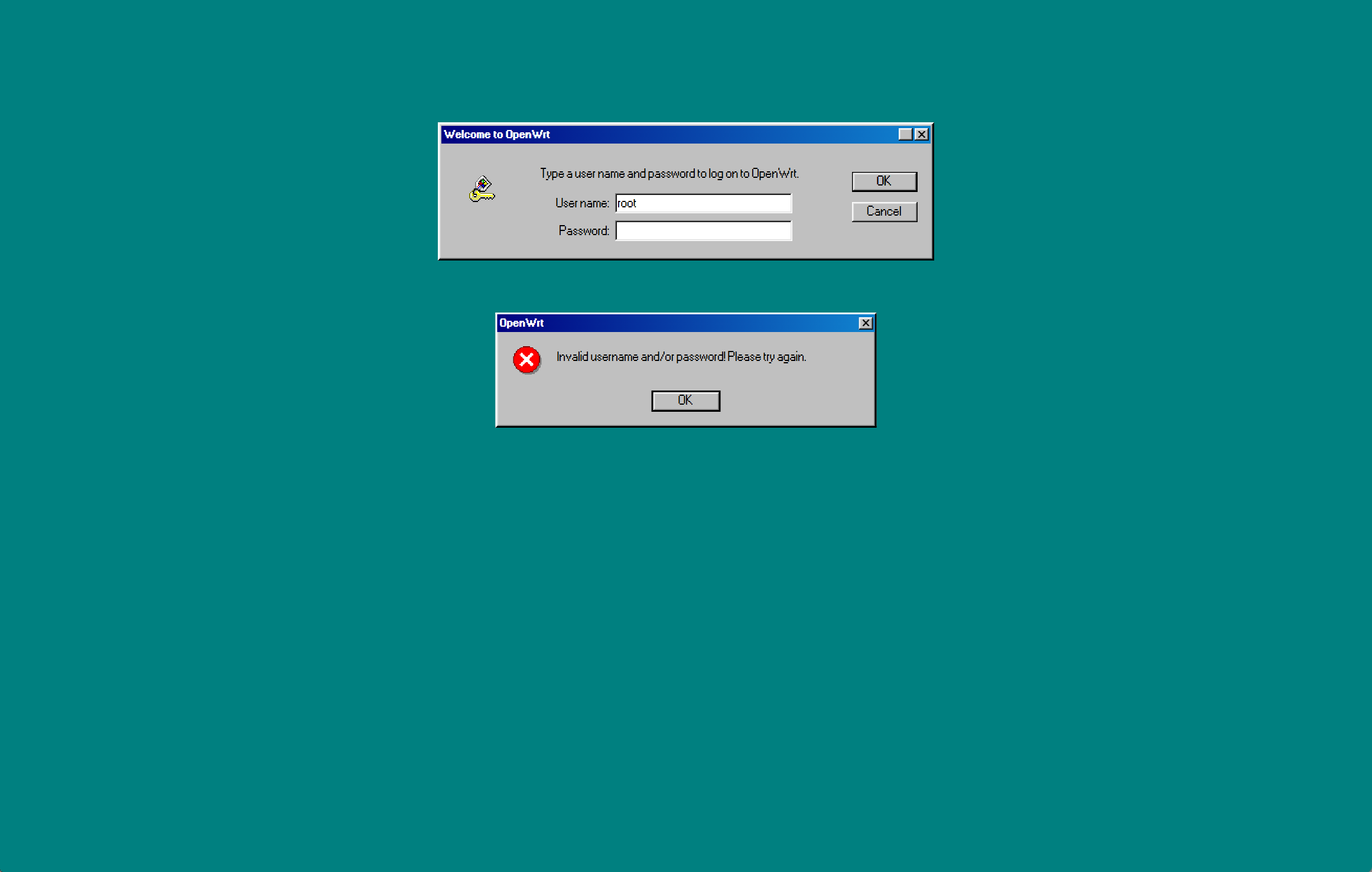
你就說牛福不牛福吧
可以說十分之還原
你就說牛福不牛福吧
只見我一個左勾拳
|
1 |
git config --global core.sshCommand '"C:/Program Files/OpenSSH/ssh.exe"' |
就治好了
使用Windows安裝助手升級Windows 11 24H2,出現毫無營養的報錯:
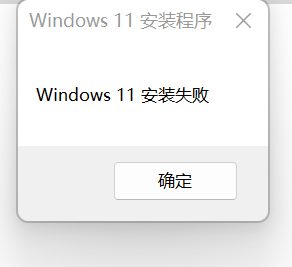
打開C:\$WINDOWS.~BT\Sources\Panther\setuperr.log,顯示
指定的用戶沒有一個有效的配置文件:S-1-5-21-一串數字-1005
因為重試幾次都是在接近100%時報錯,因此和遷移用戶數據階段的可能性很大。
Windows開始引入安裝助手不停機更新後,系統是用DISM部署到一個臨時文件夾,然後遷移註冊表和用戶數據。
打開C:\$WINDOWS.~BT\Sources\Panther\setupact.log
2024-10-21 00:22:08, Warning MIG Duplicate profile detected for user S-1-5-21-一串數字-1005(C:\Users\defaultuser100000) vs. S-1-5-21-一串數字-1003(C:\Users\defaultuser100000).
因為我就一個賬戶,所以打開註冊表HKEY_LOCAL_MACHINE\SOFTWARE\Microsoft\Windows NT\CurrentVersion\ProfileList,
刪除1001以上的所有賬戶。
Google 說default10000是忘記密碼的時候建的臨時用戶,然後我在註冊表裡看到最大的SID到了1008,所以我忘記了7次密碼嗎草
Lots of articles online indicates adding a AllowRefsFormatOverNonmirrorVolume DWORD key under HKEY_LOCAL_MACHINE\SYSTEM\CurrentControlSet\Control\MiniNT in reigstry.
This is wrong. The MiniNT section is to indicate the system is a WinRE or WinPE system, thus certain USBccid devices’ driver won’t load. Including SmartCard reader, Windows Hello (mostly implemented as an internal USB camera).
很多教程提到在註冊表裡添加HKEY_LOCAL_MACHINE\SYSTEM\CurrentControlSet\Control\MiniNT項,並添加名為AllowRefsFormatOverNonmirrorVolume的DWORD值。
其實這是錯誤的利用了WinRE啟用了ReFS作為系統盤的功能。在正常的系統中出現MiniNT項會導致系統認為這是WinRE系統,從而不加載基於USB的驅動,包括智能卡讀卡器和Windows Hello 驅動(很多 Windows Hello 攝像頭是通過USB連接的)。
現有兩個存儲池,分別叫StoragePool1和StoragePool2;兩個存儲池中各有兩塊磁盤(Disk1-1, Disk1-2, Disk2-1, Disk2-2),各組成Mirror分布的虛擬磁盤,分別叫VirtualDisk1和VirtualDisk2。
需要將 Disk2-2 退役,在StoragePool1 中加入 Disk1-3,將 Disk1-2 加入StoragePool2。
按如下操作
|
1 2 3 4 5 6 7 8 9 10 11 12 13 14 15 16 17 18 19 20 21 22 23 24 25 26 27 28 29 |
$Disk1_2 = Get-PhysicalDisk -FriendlyName 'Disk1-2' $Disk1_3 = Get-PhysicalDisk -FriendlyName 'Disk1-3' Add-PhysicalDisk -PhysicalDisks $Disk1_3 -StoragePoolFriendlyName 'StoragePool1' # 如果虛擬磁盤創建時使用的物理磁盤均為自動分配 Set-PhysicalDisk -FriendlyName 'Disk1-3' -Usage AutoSelect # 如果虛擬磁盤創建時使用的物理磁盤均為手動分配 Add-PhysicalDisk -VirtualDiskFriendlyName 'VirtualDisk1' -PhysicalDisks $Disk1_3 # 將物理磁盤移出存儲池的同時,會開始Mirror磁盤的重建 Remove-PhysicalDisk -PhysicalDisks $Disk1_2 -StoragePoolFriendlyName 'StoragePool1' # 查看重建進度 Get-StorageJob # 確認修復和重建成功 Repair-VirtualDisk -FriendlyName 'VirtualDisk1' Remove-PhysicalDisk -PhysicalDisks $Disk1_2 -StoragePoolFriendlyName 'StoragePool1' Reset-PhysicalDisk -FriendlyName 'Disk1-2' # 以下同StoragePool1的修復過程 Add-PhysicalDisk -PhysicalDisks $Disk1_2 -StoragePoolFriendlyName 'StoragePool2' # Set-PhysicalDisk -FriendlyName 'Disk1-2' -Usage AutoSelect Add-PhysicalDisk -VirtualDiskFriendlyName 'VirtualDisk2' -PhysicalDisks $Disk1_2 Remove-PhysicalDisk -PhysicalDisks $Disk2_2 -StoragePoolFriendlyName 'StoragePool2' Get-StorageJob Repair-VirtualDisk -FriendlyName 'VirtualDisk2' |
原先安裝的是Windows Server 2016鮮嫩多汁學生版,決定安裝一個成人版操作系統。
下載MSDN的iso鏡像,掛載之後,雙擊setup.exe
我這裡的原因是用了TF卡啟動,windows發現啟動分區和系統分區不一致,就哭了。解決辦法是恢復用系統分區引導進入系統。我把存儲池的四塊硬盤都拔掉了,裝完之後可以重新識別,不怕。
還需要把這個註冊表的值改成0或者刪掉:
|
1 2 3 |
[HKEY_LOCAL_MACHINE\system\ControlSet001\Control] "PortableOperatingSystem"=dword:00000001 |
因為之前用了HP的Intelligent Provisioning,系統分區的辣雞還沒清理,刪除系統分區下的autounattend.xml後,問題解決。
安裝前,需要關閉Hyper-V的虛擬機,如果虛擬機用了直通磁盤,則不能為“已保存”狀態。
安裝時,選擇保留用戶設置和文件,泡一杯茶,等待安裝完成。
