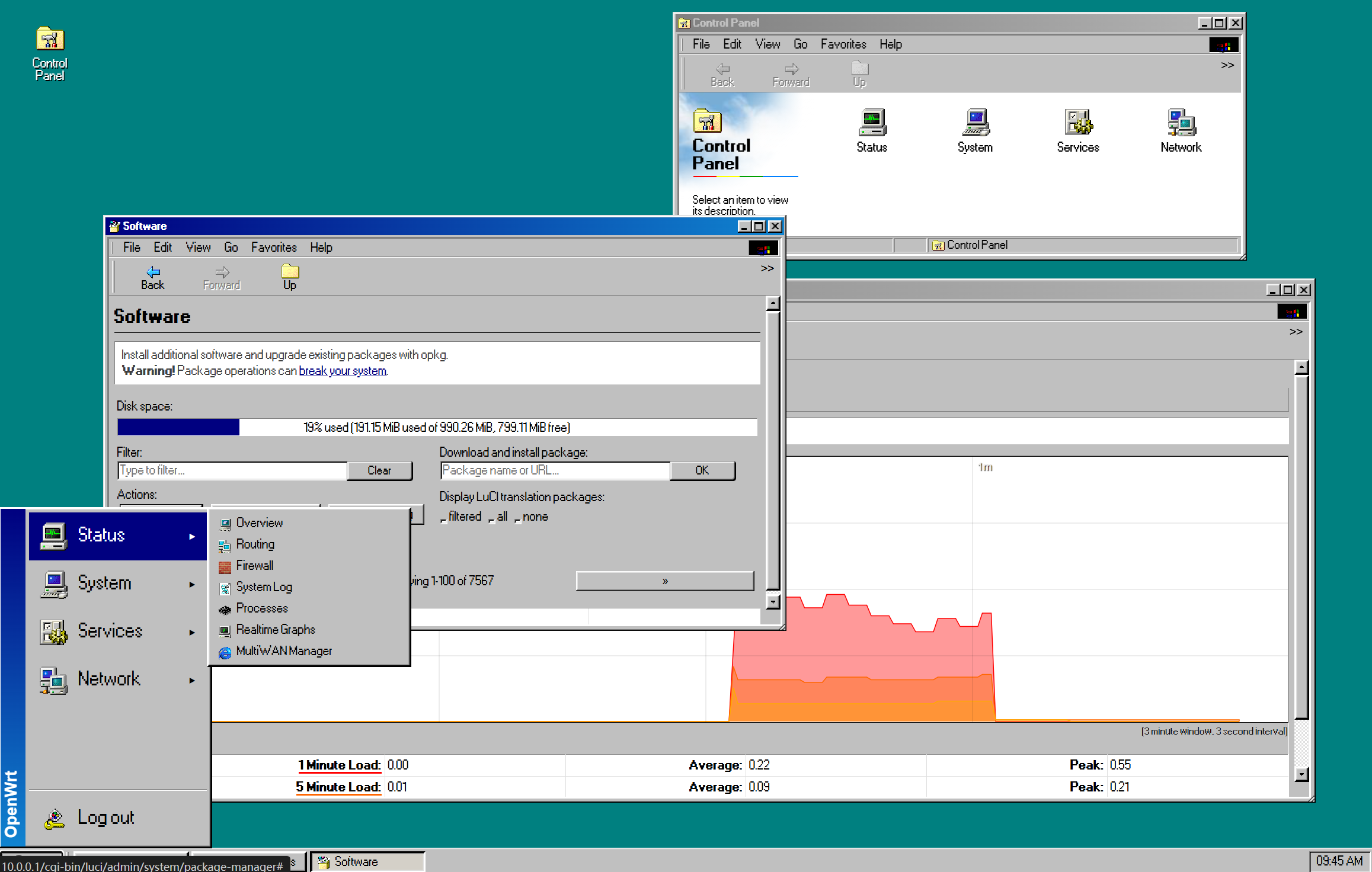
可以说十分之还原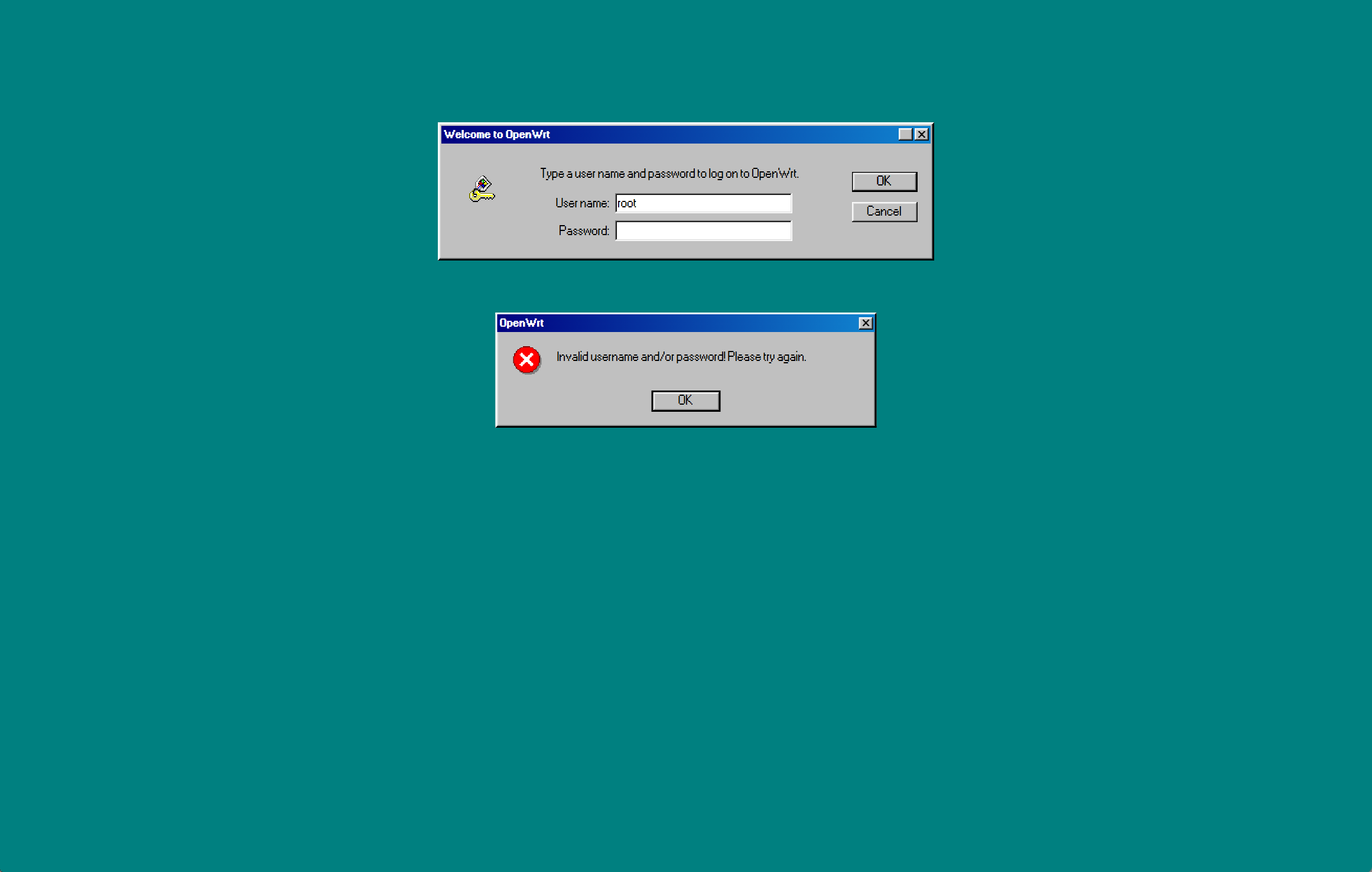
你就说牛福不牛福吧
可以说十分之还原
你就说牛福不牛福吧
只见我一个左勾拳
|
1 |
git config --global core.sshCommand '"C:/Program Files/OpenSSH/ssh.exe"' |
就治好了
使用Windows安装助手升级Windows 11 24H2,出现毫无营养的报错:
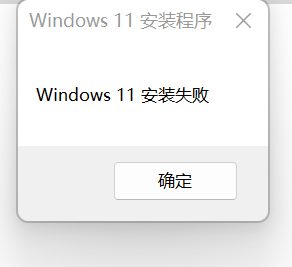
打开C:\$WINDOWS.~BT\Sources\Panther\setuperr.log,显示
指定的用户没有一个有效的配置文件:S-1-5-21-一串数字-1005
因为重试几次都是在接近100%时报错,因此和迁移用户数据阶段的可能性很大。
Windows开始引入安装助手不停机更新后,系统是用DISM部署到一个临时文件夹,然后迁移注册表和用户数据。
打开C:\$WINDOWS.~BT\Sources\Panther\setupact.log
2024-10-21 00:22:08, Warning MIG Duplicate profile detected for user S-1-5-21-一串数字-1005(C:\Users\defaultuser100000) vs. S-1-5-21-一串数字-1003(C:\Users\defaultuser100000).
因为我就一个账户,所以打开注册表HKEY_LOCAL_MACHINE\SOFTWARE\Microsoft\Windows NT\CurrentVersion\ProfileList,
删除1001以上的所有账户。
Google 说default10000是忘记密码的时候建的临时用户,然后我在注册表里看到最大的SID到了1008,所以我忘记了7次密码吗草
Lots of articles online indicates adding a AllowRefsFormatOverNonmirrorVolume DWORD key under HKEY_LOCAL_MACHINE\SYSTEM\CurrentControlSet\Control\MiniNT in reigstry.
This is wrong. The MiniNT section is to indicate the system is a WinRE or WinPE system, thus certain USBccid devices’ driver won’t load. Including SmartCard reader, Windows Hello (mostly implemented as an internal USB camera).
很多教程提到在注册表里添加HKEY_LOCAL_MACHINE\SYSTEM\CurrentControlSet\Control\MiniNT项,并添加名为AllowRefsFormatOverNonmirrorVolume的DWORD值。
其实这是错误的利用了WinRE启用了ReFS作为系统盘的功能。在正常的系统中出现MiniNT项会导致系统认为这是WinRE系统,从而不加载基于USB的驱动,包括智能卡读卡器和Windows Hello 驱动(很多 Windows Hello 摄像头是通过USB连接的)。
现有两个存储池,分别叫StoragePool1和StoragePool2;两个存储池中各有两块磁盘(Disk1-1, Disk1-2, Disk2-1, Disk2-2),各组成Mirror分布的虚拟磁盘,分别叫VirtualDisk1和VirtualDisk2。
需要将 Disk2-2 退役,在StoragePool1 中加入 Disk1-3,将 Disk1-2 加入StoragePool2。
按如下操作
|
1 2 3 4 5 6 7 8 9 10 11 12 13 14 15 16 17 18 19 20 21 22 23 24 25 26 27 28 29 |
$Disk1_2 = Get-PhysicalDisk -FriendlyName 'Disk1-2' $Disk1_3 = Get-PhysicalDisk -FriendlyName 'Disk1-3' Add-PhysicalDisk -PhysicalDisks $Disk1_3 -StoragePoolFriendlyName 'StoragePool1' # 如果虚拟磁盘创建时使用的物理磁盘均为自动分配 Set-PhysicalDisk -FriendlyName 'Disk1-3' -Usage AutoSelect # 如果虚拟磁盘创建时使用的物理磁盘均为手动分配 Add-PhysicalDisk -VirtualDiskFriendlyName 'VirtualDisk1' -PhysicalDisks $Disk1_3 # 将物理磁盘移出存储池的同时,会开始Mirror磁盘的重建 Remove-PhysicalDisk -PhysicalDisks $Disk1_2 -StoragePoolFriendlyName 'StoragePool1' # 查看重建进度 Get-StorageJob # 确认修复和重建成功 Repair-VirtualDisk -FriendlyName 'VirtualDisk1' Remove-PhysicalDisk -PhysicalDisks $Disk1_2 -StoragePoolFriendlyName 'StoragePool1' Reset-PhysicalDisk -FriendlyName 'Disk1-2' # 以下同StoragePool1的修复过程 Add-PhysicalDisk -PhysicalDisks $Disk1_2 -StoragePoolFriendlyName 'StoragePool2' # Set-PhysicalDisk -FriendlyName 'Disk1-2' -Usage AutoSelect Add-PhysicalDisk -VirtualDiskFriendlyName 'VirtualDisk2' -PhysicalDisks $Disk1_2 Remove-PhysicalDisk -PhysicalDisks $Disk2_2 -StoragePoolFriendlyName 'StoragePool2' Get-StorageJob Repair-VirtualDisk -FriendlyName 'VirtualDisk2' |
原先安装的是Windows Server 2016鲜嫩多汁学生版,决定安装一个成人版操作系统。
下载MSDN的iso镜像,挂载之后,双击setup.exe
我这里的原因是用了TF卡启动,windows发现启动分区和系统分区不一致,就哭了。解决办法是恢复用系统分区引导进入系统。我把存储池的四块硬盘都拔掉了,装完之后可以重新识别,不怕。
还需要把这个注册表的值改成0或者删掉:
|
1 2 3 |
[HKEY_LOCAL_MACHINE\system\ControlSet001\Control] "PortableOperatingSystem"=dword:00000001 |
因为之前用了HP的Intelligent Provisioning,系统分区的辣鸡还没清理,删除系统分区下的autounattend.xml后,问题解决。
安装前,需要关闭Hyper-V的虚拟机,如果虚拟机用了直通磁盘,则不能为“已保存”状态。
安装时,选择保留用户设置和文件,泡一杯茶,等待安装完成。
